For Windows 10 and 11 · version 1.1.2
From your PC to any device with a QR code.
Drop the file, scan the code with your phone, tablet or iPad camera, and it's there. No accounts, no cloud and, when needed, no Wi-Fi at all.
Lecture notes 4.pdf
1.3 MB · Scan with the other device's camera
How it works
Three gestures. Zero setup.
Drop the file
Drag it onto QR Drop, or right-click the file → Send to → QR Drop. Any type. With the full version, whole folders too.
Scan the QR code
With the camera of your phone, tablet or iPad: anything that has one. A prompt appears; tap it.
It's there
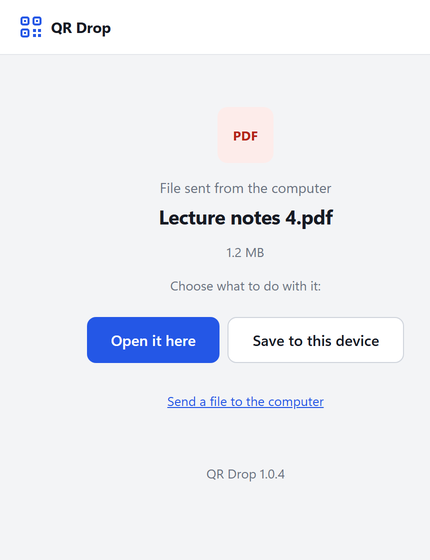
It opens in the device's browser: save it or open it with any app you like. On the PC screen you see “Received ✓”.
It also works the other way (from the device to the PC, nothing to install), and with text and links: paste them and you get a QR code.
What it looks like
A window on the PC. A page on the device.
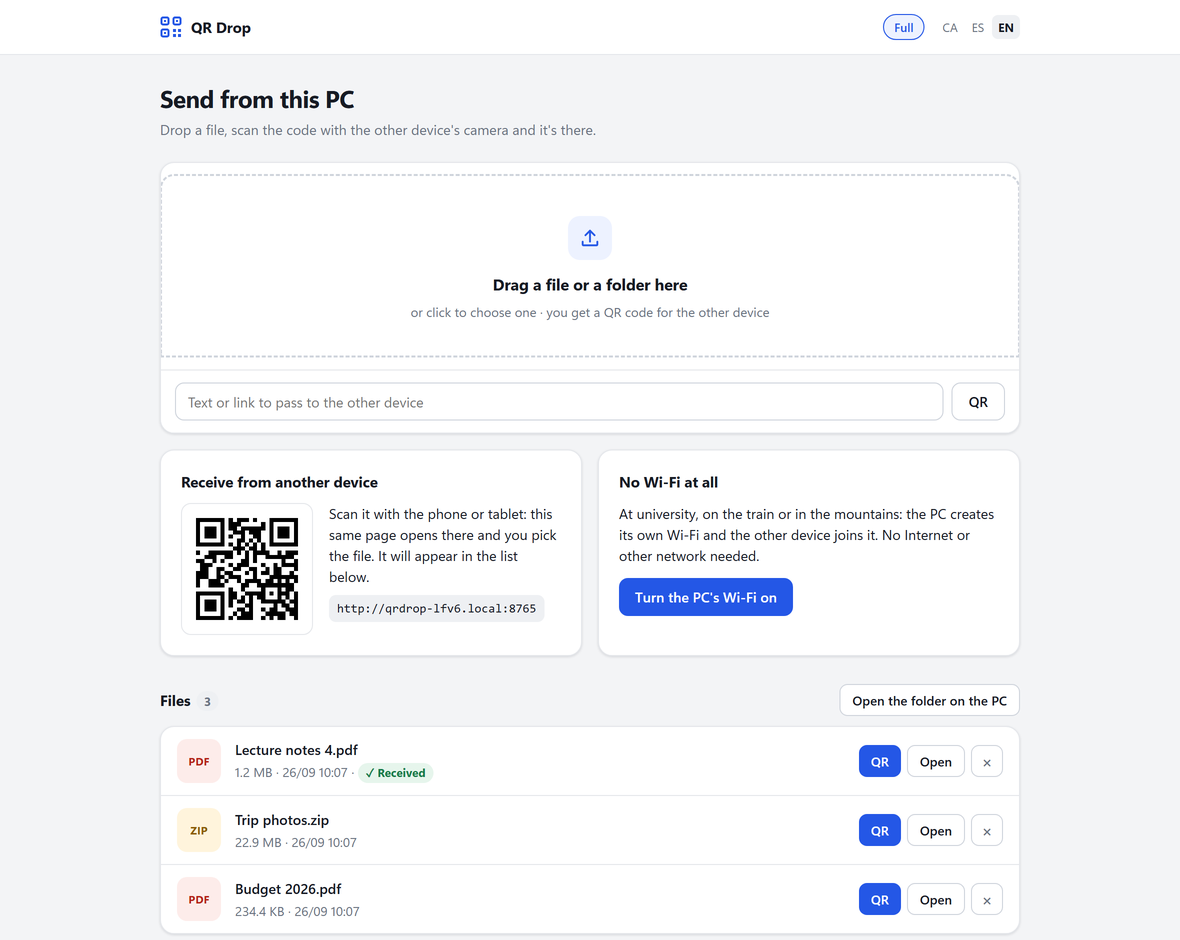
No Wi-Fi at all
Your PC creates its own Wi-Fi.
Other tools need both devices on the same network. QR Drop can create the network itself: no Internet, no other connection needed.
At university
Campus networks like eduroam isolate devices from each other: even with the PC and the phone on the same Wi-Fi, they can't see each other. With the PC's own Wi-Fi, they can.
On the train, on a plane, at someone's place
Without asking anyone for passwords or waiting for the venue's Wi-Fi to work.
In the mountains
No signal, nothing at all: the laptop's Wi-Fi radio is all it takes.
The first time, the other device joins by scanning a QR code (the network name and password are inside it). After that, it joins by itself. When you switch it off, the PC's Wi-Fi disappears.
What's free and what isn't
Free on the same Wi-Fi. Nine euros for everything beyond it.
- Files one at a time, up to 50 MB each
- Text and links, both ways
- On the same Wi-Fi (home, work, any router)
- Right-click → Send to → QR Drop
- No limit on files or transfers, no sign-up
Free means free: no trial that expires, no features that vanish.
- Everything in Free
- The PC's own Wi-Fi: no connection needed, at university, on the train, in the mountains
- Large files, up to 2 GB (videos, projects)
- Whole folders in a single QR code, by dragging them or with right-click
- No subscription. Forever on that computer
You buy it from the app (Activation → Buy). Card payment (Stripe); the code arrives by email within seconds.
How activation works
A code tied to your computer.
You buy it from inside the app. The activation code is made for your PC and won't work on any other. No account, no password, nothing that expires.
Click “Buy” inside QR Drop
In the app's Activation section. Checkout opens in your browser with your computer already identified: nothing to copy.
Pay
Email, name and card. That's it.
Get the code and paste it
It arrives by email within seconds. In QR Drop → Activation, paste it and click “Activate”. The code only works on that computer.
Privacy
Nothing leaves your computer.
No cloud
Files go from the PC to the device over Wi-Fi, directly. They never touch a server.
No accounts
No sign-up, no email needed to use it. The activation code is checked inside the PC, offline too.
Under control
No other device on the network sees anything until it scans your QR code. Every file has its own link and you remove it with one click.
Questions
What people usually ask.
Windows asks for firewall permission. What do I do?
Say yes. QR Drop receives the phone's connections over the network, and Windows asks for administrator permission once, right after installing, to let them through on any Wi-Fi (public ones too, like university networks). If you said no, open QR Drop: there is an “Allow QR Drop through the firewall” button that fixes it.
When installing, Windows says “unknown publisher”.
That's the warning Windows shows for any program from a small developer who doesn't pay for a signing certificate. Click “More info” and then “Run anyway”. The installer doesn't ask for administrator rights and uninstalls from Apps like any other.
Which devices does it work with?
Any with a camera and a browser: iPhone, iPad, Android, tablets of all kinds, even another laptop with a camera. Nothing to install.
Do I need to install anything on the phone or tablet?
No. The file opens in the browser and you save it wherever you like. To send things from the device to the PC, you scan a QR code and a page opens to pick the file.
Can I try the full version before paying?
There is no trial period: the free version is complete in what it does, and the paid part (the PC's own Wi-Fi, large files and folders) is paid once. If it doesn't work for you afterwards, write to us and we refund it.
I changed computers. Do I have to pay again?
No. Write to studiosprocessai@gmail.com with the new machine code and your purchase email, and we send you another activation code.
What if the PC has no Wi-Fi?
A desktop without a Wi-Fi card can use QR Drop on the same network (wired, with the device on the same router's Wi-Fi), but it can't create its own Wi-Fi.
What's the maximum file size?
50 MB in Free (any PDF, presentation or photo fits easily); 2 GB in Full. Speed is your Wi-Fi's: a PDF takes a second; a long video, as long as copying it over the network would.